Saturday, November 26, 2011

501 Header Values Specify a Method That is Not Implemented - activesync test

501 Header Values Specify a Method That is Not Implemented


     

Share/Save/Bookmark

It is possible to test activesync connectivity and availability on an Exchange 2007 or 2010 server without a smartphone. The FASTEST way to test for access to activesync on an Exchange server without a smartphone is to enter the the activesync URL into your browser's address bar and connect to it. The message you receive will look like the one in this post but that is NORMAL. The reason we get that message, as erroneous as it looks, it because it's a browser not a smartphone. The smartphone not only connects to the activesync URL but it also passes login information which we do not when manually entering the URL address into our browser.

The URL to test activesync on an exchange 2007 or 2010 server without a smartphone is :

https: //yourdoamin.com/Microsoft-Activesync-Server.

The the text in the URL is CaSe sensitive.

501 header values specify a method that is not implemented. When receiving this "erroLinkr" message during an active sync test without a smartphone, it is normal. Test activesync using a URL from a computer via a browser.

This page is normal for when connecting to an exchange 2007 server with SP1 or Exchange 2010 using a browser with the active sync URL as the address. The message between Exchange 2007 and Exchange 2010 differs much because of the differences in the IIS versions. It's only an appearance difference for an exchange 2007 server on windows 2003 or windows 2008 server .

Also, on different Windows Server versions, for example Windows 2003 Server the IIS version differs enough and the error codes also different so that's what's going to generate a different looking 501 error in the browser. with Microsoft Exchange 2007 on Microsoft Windows 2003, the message reads 501/505 not implemented or not supported. The image above is Microsoft Exchange 2007 on windows server 2008. Microsoft Exchange 2010 on Windows 2008 or 2008 R2 will be the same because remember, it's IIS that's actually presenting the error code and page to the browser not Exchange.

http://www.blogger.com/img/blank.gif http://onlineremotesupportsoftware.blogspot.com/ http://www.blogger.com/img/blank.gif 
501 Header values specify a method that is not implemented


Enhance and Improve your Support Service
Provide improved  remote technical support to clients and users, even family and friends.  Whether you're  a member of a large MSP network operations center team or a single  person business servicing and accessing desktops from a small office or home office, 4RemoteSupport software for online desktop support  improves service levels for all business sizes.  It is common for MSP and  individual IT support service providers to provide remote desktop access support utilizing multiple desktop screen sharing software. Remote control access software that requires software such as an  agent installed on the remote desktops for  future re-connections tend to cost more than online desktop support software used only when required.  remote desktop software that's agent based, requires installation and leaves a service running. These types of online desktop support software services usually incurs a charge per each remote desktop. Non-agent remote desktop client applications  permits online remote desktop connections when needed and connections are usually initiated by the user on the remote desktop. Most providers will have and use both types support tools appropriate for different scenarios. 4RemoteSupport online desktop support software does not require pre-installation nor require plugin software or framework services like .NET preinstalled. It works with all popular browsers. No browser extensions or plugins needed. 


Friday, September 16, 2011

Configure SSH on ESXi 4.0 Host

Steps to configure SSH on ESXi 4.0 Host.

From the main screen on the ESXi host press Alt + F1.

At the next screen type:

unsupported

and enter the root password when prompted.

Use a text editor to uncomment (remove the hash symbol #) from the beggining of the following line in the file /etc/inetd.conf. Then save the changes:
# ssh stream tcp nowait root /sbin/dropbearmulti dropbear -l

Resatrt the process called inetd by running:

#cat /var/run/inetd.pid
#kill -HUP


Verify the ESXi host is accessible by SSH. To do this from the SSH client, log into the ESX host:

~ # dbclient root@server
The output will be similar to:

Thursday, December 16, 2010

Determine find BES server version blackberry server version


Open up BES, then click on Servers you will see Blackberry EnterpriseServer Version. As shown in the image above, at the bottom of the list that starts with the status is the version of the BES server. In the case above, the BES server is running 4.1.6.10 ( a small install of BES with only 4 users currently).

Friday, November 26, 2010

32 Bit HP BiDi Channel Components Installer


Product: 32 Bit HP BiDi Channel Components Installer -- The installer has encountered an unexpected error installing this package. This may indicate a problem with this package. The error code is 2753.
Everytime a user logged into a Citrix server with a specific HP printer, in this case it was a 2420, the msiexec process would run and generate and log an error in the evnt log of the server. The error would indicate the microsoft installer ran and could not complete with an error. Now, having the istaller run for every user that logs into a Citrix server consumes resources and make the login process, at least the printer creation portion, much slower.
A solution to this problem that worked for me was to zero out the file(s):
hpzBDI32.msi
Create a file with 0 (zero) bytes in the C:\WINDOWS\system32\spool\drivers\w32x86 or any folder below this one containing the file. Rename the original .msi file and then name your zero byte file with the same name. To create a zro byte file do the following. Open notepad and and then save the file with any name. rename the original hpzBDI.msi file, you may have to stop the spooler to rename it, then copy the zero file into the directory and rename it to hpzBDI32.msi.

Thursday, December 31, 2009

Supporting Technology with Technology.: Enable 24 bit color in RDP for XP or 2003 Server


Supporting Technology with Technology.: Enable 24 bit color in RDP for XP or 2003 Server

The default maximum color depth for rdp connections to windows 2003 server terminal servers or to windows XP desktops is 16 bits. Although in the drop down in the options sections of the rdp connection program there is true color 24 bit shown as one of the selection options, the connection is never made at 16 bits. That's because the remote XP desktop or windows 2003 server has a default limit of 16 bits. To connect with true color 24 bit rdp a change o nthe remote computer has to be made using group policy editor. This can be done for a whole domain by linking the the policy to a domain OU or per computer by using the local group policy editor. The images show how to change the the pre-defined default color limit on XP or windows 2003 server limits the color depth of RDP connections made to the the systems to a 16 bit maximum. How to configure the "server side" of remote desktop to accept connections at 24-bit true color. Windows 7, Vista, and server 2008 already allow higher that 24 bit color by default.

Tuesday, November 24, 2009

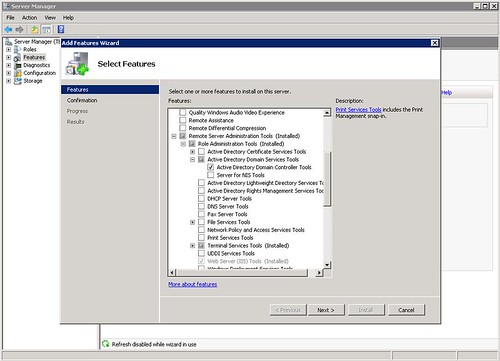
What happened to dsa.msc in 2008 windows server.

What happened to dsa.msc on windows 2008 server?

A simple yet effective tool for admins and other tech support specialists that often had to access AD users and computers on the fly. Simply running this command on a windows 2003 member server would open the domain users and computers and allow changes and addition provided the user account with which it was run had sufficient access privileges.

In windows 2008 server this handy little feature is just that, a feature, and needs to be added separately. The image in this post shows which options to select to add the functionality back into the member server. If you used the command a lot then it's worth the several minutes to add it. It could wind up saving you server and user administration time in the long run and it doesn't require a restart. Just install and go.

Friday, October 23, 2009

Dell SAS 6/iR RAID Controller


Dell SAS6/iR Integrated SAS Controller Card Storage controller (RAID)- Serial ATA-300 / SAS- 300 MBps

This RAID controller card does not support RAID 5 or RAID 10. In fact it doesn't support any RAID configuration except for RAID 1 and RAID 0, that's it. It's a Plug-in card that's PCI Express x8 with 2 CH for PC and Unix. The Dell SAS6/iR integrated SAS controller card is designed to connect internal physical hard drives in workstations and servers. It's entry level and comes standard in the dell Poweredge r610 server. The SAS6/iR utilizes high performance SAS 3 Gbps technology to connect to the all the physical internal hard drives. It supports two internal x4 SAS connectors, each containing four ports for a total bandwidth of 12 Gbps, per connector. This card also supports for RAID levels 0 and 1 but not any RAID levels that are higher. It features integrated ARM I/O processor for processing all RAID 0 and RAID 1 operations. Up to 10 physical disks are supported by the integrated striping the SAS6/iR provides. The controller is incorporated with global hot spare feature, it can support a maximum of 2 global hot spares one for each virtual disk.


Dell Storage Controllers

Desktop and server remote access support software